
You Refreshed Your Logo. Now What?
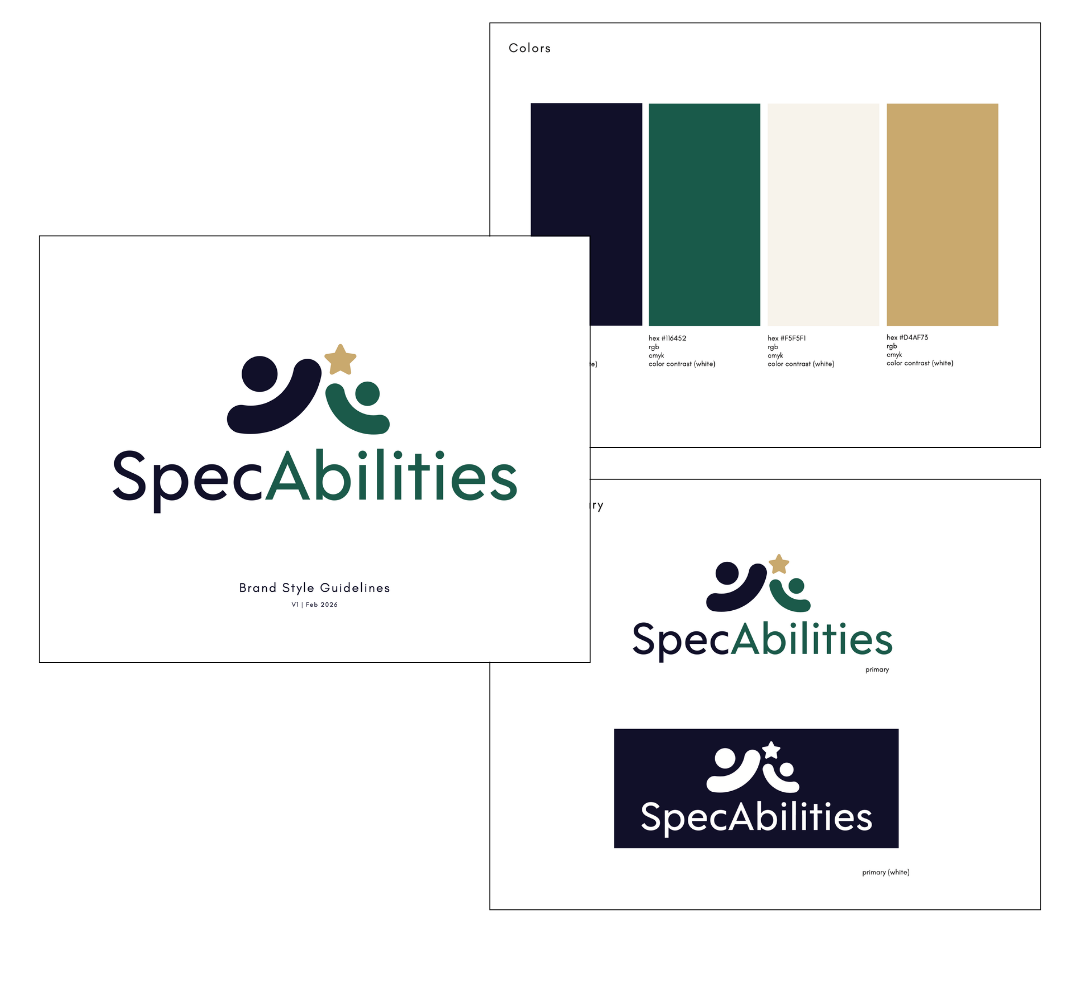
Getting a shiny new logo is one of the best feelings in business. After the kickoff calls, the mood boards, the concept reviews, and the final approval — you’ve got something you’re genuinely proud of sitting in your inbox.
And then it hits you: your logo is everywhere. Your email signature, your website, your social media profiles, your business cards, your building sign. What felt like a finish line suddenly has a very long to-do list attached to it.
Don’t panic. With the right plan and a solid understanding of your brand style guide, rolling out your new logo is completely manageable. Here’s exactly how to do it.
Step One: Understand What’s In Your Logo Package
Before you update anything, open your logo package and get familiar with what’s inside. A professionally delivered logo should include files in multiple formats, each with a specific purpose:
• PNG — Your go-to for digital use. Transparent background. Use this on your website, social media, email signature, and presentations.
• SVG — Scalable vector file. Perfect for web developers. Stays crisp at any size.
• EPS — For print vendors, signage companies, and embroidery. This is the file to send when someone asks for a “vector file.”
• JPG — Flat file with a white background. Good for documents, invoices, and anywhere transparency isn’t needed.
• PDF — Print-ready. Great for sending to vendors.
You’ll also likely have multiple logo variations — a primary logo, a secondary or stacked version, a submark or icon, and versions in both full color and single color (for use on dark backgrounds or embroidery). Knowing which version to use where is half the battle.
Pro tip: Save your ZIP file somewhere you’ll actually find it, a clearly labeled folder backed up to Google Drive or Dropbox. Losing your logo files and having to recreate them is more common than you’d think.
Step Two: Open Your Brand Style Guide and Actually Use It
Your brand style guide (sometimes called a brand bible) is the rulebook for how your brand looks and feels everywhere it shows up. If your designer delivered one — and they should have — this is your single source of truth going forward.
Here’s what’s typically inside and how to use each piece:
Color Palette (Hex Codes)
Your brand colors are listed as hex codes (for digital use, e.g., #026065), RGB values (for screen and digital printing), and sometimes CMYK (for traditional print). Use these codes every time you create anything branded, in Canva, PowerPoint, your website builder, or wherever you design.
Never eyeball your brand colors or use “close enough.” Inconsistency in color is one of the fastest ways to make a polished brand start looking DIY.
Where to apply your colors: Website backgrounds, buttons, and accents. Canva templates. Social media graphics. Email campaigns. Presentations. Printed materials.
Typography (Fonts)
Your guide will list a primary font (usually used for headlines) and a secondary font (for body copy and supporting text). Stick to these. Using random fonts pulls your brand apart visually even if everything else is on point.
Practical tips:
• Download your brand fonts to every device you design on.
• Add your fonts to Canva (Canva Pro allows custom font uploads).
• If a platform doesn’t support your exact font, your guide may suggest approved alternatives.
• Update your PowerPoint and Google Slides master templates with the correct fonts.
Logo Usage Rules
Your guide will show you which logo version to use in which situation. Some common rules to know:
• Use the full primary logo on your website header, business cards, and proposals.
• Use the submark or icon version for social media profile photos, favicons, and small-scale applications.
• Use the single-color or reversed (white) version on dark or colored backgrounds.
• Never stretch, recolor, rotate, or add effects to your logo. Ever.
Step Three: Update Everything (In the Right Order)
Now that you know what you have and how to use it, it’s time to roll it out. Work through this list in priority order: digital and client-facing materials first, physical items as they run out.
Before You Go Public: Prepare
• Apply your new colors and fonts to all templates: Canva, PowerPoint, Google Slides, proposal templates, invoice templates, email signatures. Do this first so nothing client-facing goes out with the old branding.
• If your rebrand involved a name change, finalize any government or state paperwork before going public.
• Consider trademarking your new logo or business name if you haven’t already.
Digital First
• Email Signature: Update immediately. Make sure everyone on your team does the same.
• Website & Favicon: Header, footer, any embedded logo images, and the tiny icon in the browser tab (favicon).
• Email Marketing Platform: Update the logo in your email templates in Mailchimp, Klaviyo, Constant Contact, or wherever you send campaigns.
Social Media Profiles & Covers
Update your profile photo and cover image on every platform:
• Facebook (business page and personal page if you rep your brand)
• LinkedIn (company page and personal profile)
• X (Twitter), TikTok, YouTube, Google Business Profile
Print & Physical Materials
Flag what needs to be reprinted and prioritize what clients see most. Work through the rest as items run out:
• Business cards, flyers, letterhead, presentations
• Proposals, contracts, invoices
• Building signage, door graphics, vehicle wraps
• Branded clothing and promo items
Step Four: Make It a Moment
A logo refresh is a business milestone. Don’t quietly swap it out and hope people notice. Announce it strategically:
• Build anticipation: Post a teaser reel, a behind-the-scenes story, or a “something new is coming” countdown before the big reveal.
• Drop the logo: A carousel post works especially well here since it gets the most reach. Mix in a reel and a static post to hit every format.
• Write a blog post: Share the story behind your refresh. The why, what changed, and what it means for your business. It’s great for SEO and gives your audience something real to connect with.
• Email your list: Send a warm, personal announcement to your subscribers. Send a separate heads-up to vendors and partners so they’re not caught off guard.
• Post on your personal social channels: Your personal network often outperforms your business page. Let them see the human behind the brand.
One Last Thing: Your Brand Style Guide Is a Living Document
Share your brand style guide with anyone who touches your brand: your social media manager, your web developer, your virtual assistant, your printer. The more consistently everyone uses it, the stronger and more recognizable your brand becomes over time.
Pin it to a shared Google Drive folder. Reference it every time you create something new. Treat it like the business asset it is.
And if you ever need help rolling out your new brand, updating your website, or creating templates that actually match your new look, that’s exactly what The Branding Den is here for.